


DVI – Adding Internal Tasks and Tech Instructions
An internal feature in our digital vehicle inspection software allows the shop to add questions that are not visible to the customer in the inspection report. We also allow you to leave instructions for the technician on how you want specific tasks filled out.
We can allow the Technician to check off or comment on items the customer doesn’t need to see. For example, when a Tech tells you that the transmission needs to be serviced, we can add a task that explains which type of fluid to use. This can also come in handy when a battery, tires, etc., are needed. It allows the Tech to add notes that the customer does not need to see, but that will aid the Advisor when it comes time to gather parts. On the checklist, it will look like this:

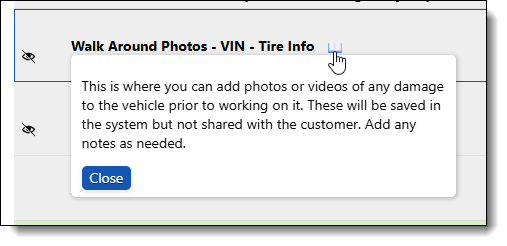
The icon to the left (eye) indicates to the Tech that this is an “Internal Task”. The icon to the right (the book) indicates there are notes or instructions for the Tech.

The notes/instructions are customizable as well. This is what the instructions look like to the Tech if they click the book icon:
When the Advisor looks at it on the auditing screen, they will see something like this:
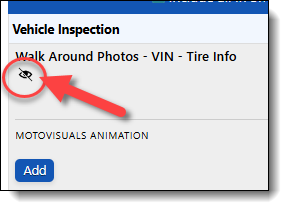
You’ll notice the “Eye” icon again, showing the Advisor that this is internal and will not be on the texted or printed copy.
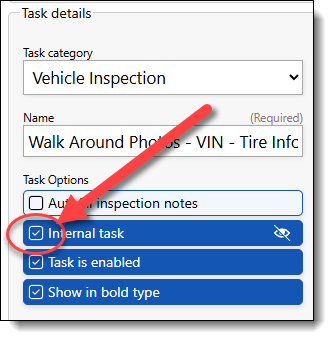
To set this up, on the editing page for the task, you’ll see the options to make this an internal task and the option to include instructions if you’d like.
As always, give us a call if you have questions or need help getting this setup.