


Adding the app icon to the tablet/phone
Users can log in from a computer, tablet or even their cell phones. Since we’re web-based, there’s no need to download an app, but the user will probably want an icon to click to open the program.
Once you have your employees setup in the system, do them a favor and add a shortcut to the program on their home screen of whatever device they will be using, whether that’s a tablet or a cell phone. BTW, we highly recommend using a tablet instead of a cell phone. The phones work fine, it’s just easier to see and type on with a tablet. We recommend the Samsung Galaxy Tab family. 7″ to 8″ screen works best. Android 16 is current, we recommend anything newer than Android 14 for best results.
To add a shortcut to the devices homescreen, here are some instructions:
iPad or iPhone:
- Launch “Safari” app. see below if you’re using Chrome.
- Enter into the address field repairshopsolutions.com/login. Tap “Go.”
- Have the user login so the homescreen of your RSS account shows.
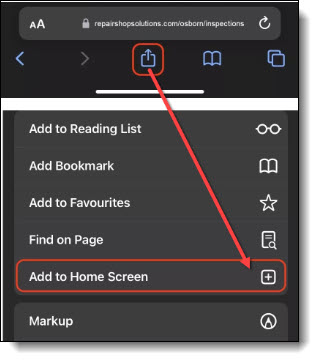
- Tap the icon featuring a right-pointing arrow coming out of a box along the top of the Safari window to open a drop-down menu.
- Tap “Add to Home Screen.” The Add to Home dialog box will appear, with the icon that will be used for this website on the left side of the dialog box.
- Enter the name “RSS” for the shortcut using the on-screen keyboard and tap “Add.” Safari will close automatically and you will be taken to where the icon is located on your iPad’s desktop.
Android: (or using Chrome on an iPad)
- Launch “Chrome” app
- Enter into the address field repairshopsolutions.com/login.
- Have the user login so the homescreen of your RSS account shows.
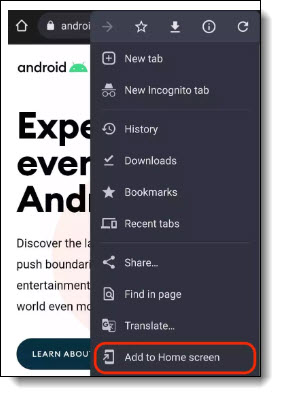
- Tap the menu icon (3 dots in upper right-hand corner) and tap Add to homescreen.
- You’ll be able to enter a name for the shortcut and then Chrome will add it to your home screen.
If you should need help at any step, there’s a chat button in the lower right of your screen or you can always give us a call at (424) 262-1580.