


DVI – Limit the Number of “Vehicle” Images
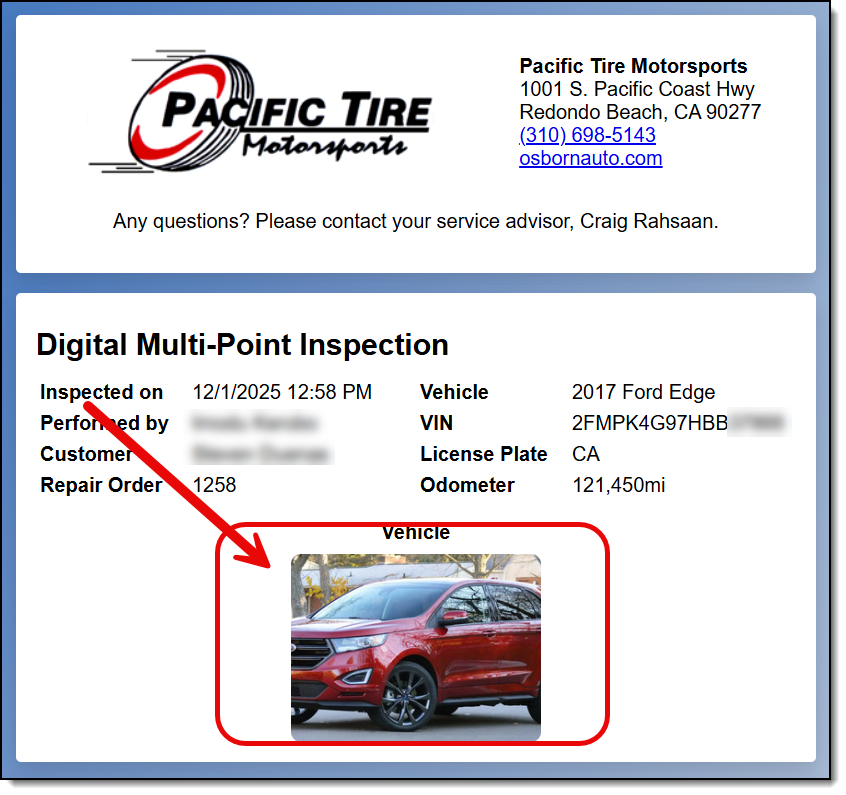
When you first open the checklist, there’s a spot for the user to add a photo of the vehicle. This is designed to place one photo of the car at the top of the customer’s inspection report. Like this:
Unfortunately, many techs don’t understand how to use this section (they’ve never been shown), and they end up taking a bunch of photos of the car as “Walk Around Photos” to show damage, scratches, etc. This is not a good place for that, as the photos in this section are “Sticky” and will show up every time the vehicle comes in. That means the photos never get updated or cleaned out. Here’s a good example of a bad example:
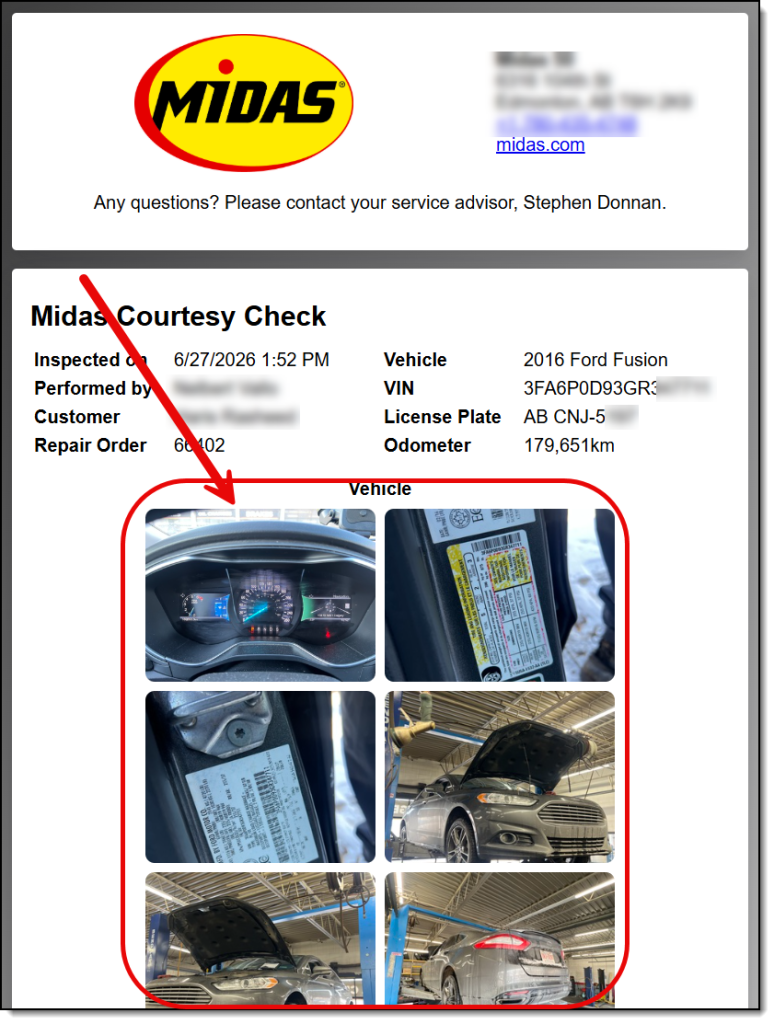
There is no benefit to the customer to show them most of these photos, and this was due to a lazy tech who didn’t want to go into the correct task to add photos. He just decided to take them all at once.
Well, you can now limit the number of photos allowed in the vehicle section. Go to Settings/Shop Settings, and on the settings tab, there is a spot to limit the number of images allowed in the vehicle section.
