


Editing Contacts
(back)
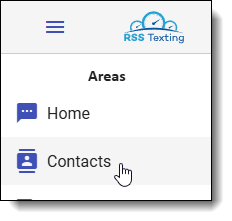
If you want to upload a list of your current customers or need to merge duplicates, change names, or numbers, the place to do that is in the Contacts section. You can quickly search for anyone by name or even a part of the phone number. You can add new customers; however, that is also done anytime you send a new customer a message, and we automatically save them in this list.
If you have multiple locations, you can choose to search through all of them. If you’ve marked some as inactive, you can easily re-activate them.
We also have a tool here to let you upload a current customer list, so you’ll never have to type their name or number again. Use this tool to upload an existing customer list. We will accept a .csv or a .xlsx file which includes two columns: Name and Phone. All other columns will be ignored. To see a sample .csv file, click here. To see a sample .xls file, click here. We will check for duplicate phone numbers. If your file contains a number already in RSS Texting with a different name, you will have the opportunity to select the desired name for each duplicate number.
If you end up with duplicate names/numbers, we’ll do our best to fix those for you. But you may need to merge duplicates that we don’t pick up manually. If that’s the case, select the contacts you want to merge, and the merge option will show up. You will be given a chance to choose which contact to use in the merge.
(back)