


Scheduled Messages
(back)
Working with Scheduled Text Messages:
In the upper right corner of your home screen, you may see a red number hovering over the schedule icon. That is an indicator of how many messages you have scheduled to be delivered in the future.
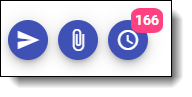
Clicking that red number will bring up the Scheduled Message list. Same screen as selecting the Scheduled Messages option from the main menu. It will show you a list of all messages ready to be sent, with the following message to be sent at the top of the list. You can sort by any of the columns.
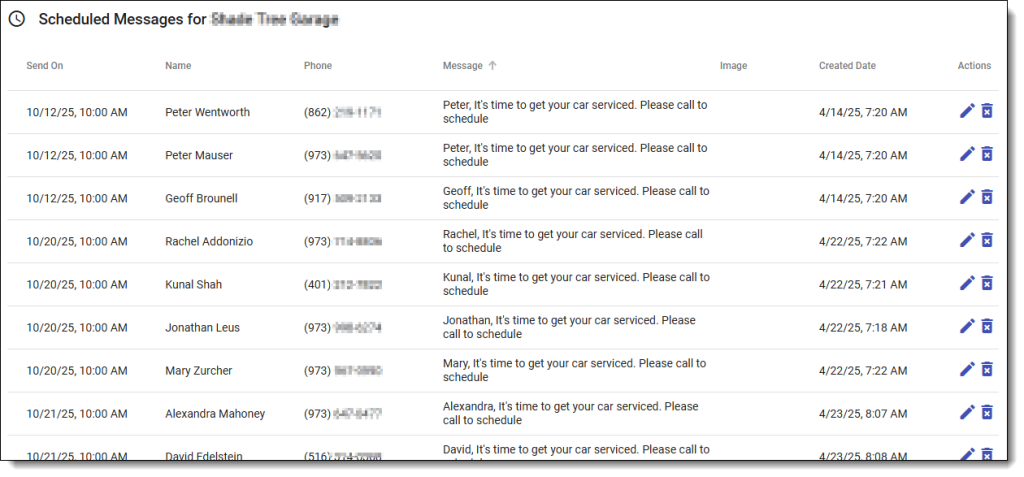
You can edit or cancel any of these messages. They are all scheduled to go out at your shop’s default time (from the settings menu). I used to check this at the end of every week to ensure I wasn’t sending reminders to someone who had visited just a few weeks prior. You can edit the message, time, or date, or delete it altogether.
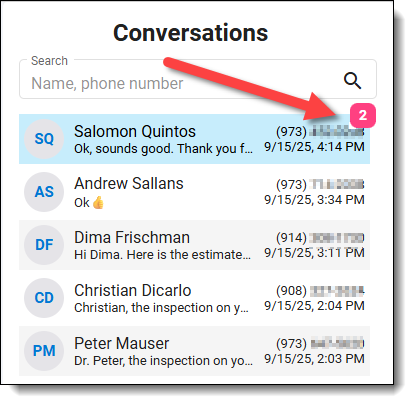
Suppose you see numbers attached to a customer’s initials in the Conversation section, indicating that that many messages are scheduled for that person. Again, clicking the number will bring up the expected message list, but will only show messages being sent to that customer.
(back)