


DVI – Adding Users to Your System
Adding users to our digital vehicle inspection software is extremely simple. All you need to do is add their name and email address, choose the basic use level, and we’ll send them an invitation to join your shop. The link will be valid for 24 hours.
In most companies, your employees are set up as either Owners, Managers/Advisors, or Mechanics/Technicians.
- Owners can reach any part of the program and view anything, make changes, add or delete employees, etc..
- Managers have limited access and can start, view, search and print inspections. They can also admin the mechanics and have access to to reports and some setup options.
- Mechanics have limited access depending on their settings.
To add employees to your account, you’ll need their name and email address. Don’t make up a shop email address for them, as the system will send their invitation to the address you add. They will be asked to create a password. The system will never send anything from your employees, and the email address is used only for login and for communication with us during technical support. Customers will never see the email address. Do not use a shop address (like “tom@myautoshop.com”) unless it is one they already use on a regular basis and check often.
To add an employee,
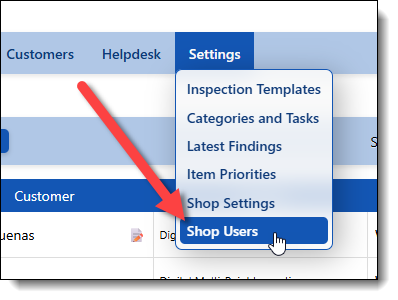
- Click on the “Settings” in the menu bar at the top of the screen, then select “Shop Users”.
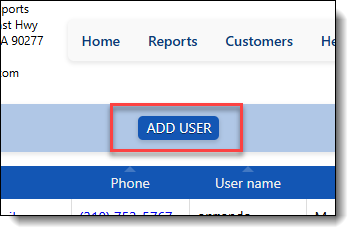
- Once the page opens, click the “Add User” button:
- This will open the New User window, where you will enter their name, email, optional username, and optional cell number. Take a moment to check the help fields as shown.
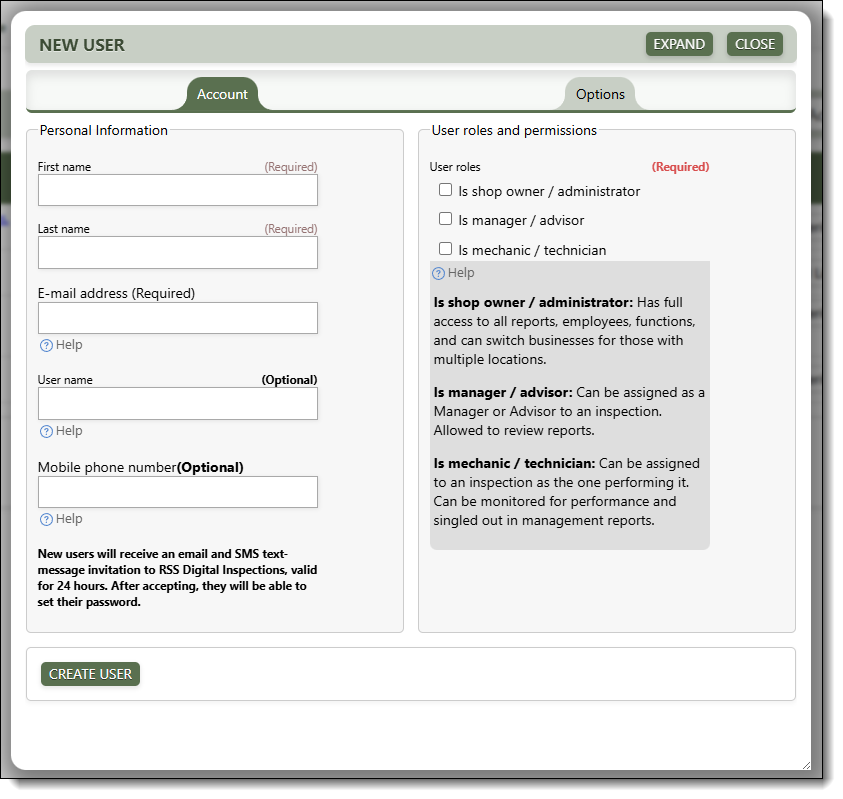
We will set most of the options for each employee type, but if you want to customize them, you can always edit an existing employee to see more options. Click save, and you’re done, ready to add the next employee. Follow the same steps to add the rest of your employees.
If you should need help at any step, there’s a chat button in the lower right of your screen or you can always give us a call at (424) 262-1580.