


Using Texting Templates
(back)
Using a template to send quick text messages can save you hours compared to playing phone tag and using voicemail with customers. On average, a Service Advisor wastes 1.5 hours every day trying to get in touch with a customer or waiting for a call back.
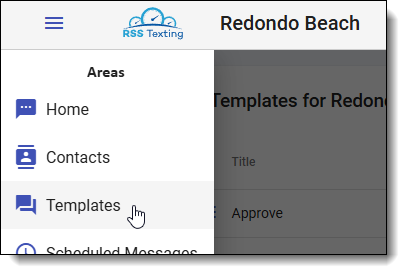
For those messages you send often, like “Jim, your car is ready, we’ll be here until 5 pm“, or “Sandy, it’s been a few days since we serviced your car. Just checking in and wanted to know if we could count on you for a Google review. If so, please go to https://g.page/r/Ce-aJ9GdAWxNEAI/review“, these can be added as a template and auto-fill that text.
One of the tricks we learned as we developed this program in our shop was to plan on sending all customers a text message around noon that their car was in the shop. The message read, “Steve, we’ve got the parts we needed and expect to have your car done by 5 pm.” A simple message, but it cleared our phone lines of the flood of calls we got from 1-3 pm asking for an update on their car. In seconds, you send that message, and, as I mentioned, it saves you about an hour a day of incoming call interruptions.
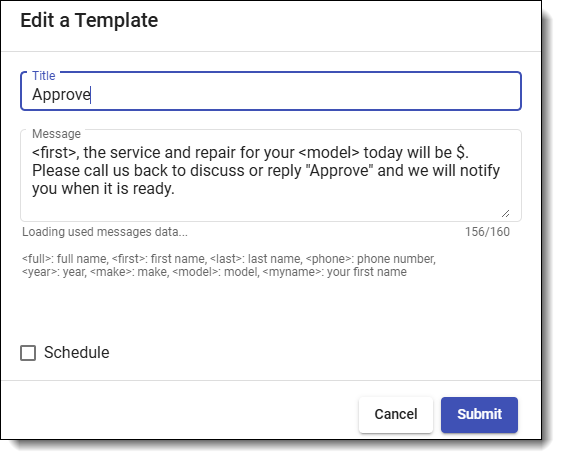
Templates have several options too, When creating or editing one of our standard templates, you can add fields that will pick up customer info and add it to the text. The options you can auto-populate are:
- <full>: customers full name (Robert Smith)
- <first>: customers first name (Robert)
- <last>: customers last name (Smith)
- <year>: vehicle year (2015)
- <make>: vehicle make (Ford)
- <model>: vehicle model (Mustang)
- <myname>: The first name of the person logged in. Look at the upper right corner of the page
When creating a template, use one of those options as a placeholder for the desired data. For example, if you wanted to send “Steve, can you call me regarding your Mustang when you get a chance?”, you would enter the template as “<first>, can you call me regarding your <model> when you get a chance?”. If your customer has a vehicle in their file, you would choose which one to use, and it would populate the message with that info. If there is no vehicle associated with this customer, “XXX” will replace the text, and you can edit that before you send it.
Scheduled Templates:
You can also set templates to be sent in the future. This is handy for scheduling the next service in 4 months, or asking for a Google review in a day or so—even a reminder of an upcoming appointment. You’ll see this option when you’re editing templates. When you send a message using a scheduled template, it will let you know when the message will be delivered.

I just wanted to let you know that you don’t need to enter a number to call you back. Simply clicking “Call” on the text message will automatically call your shop’s phone number. Try it yourself by sending a message. See what the customer sees.
The more concise your messages are, the better response you’ll get from customers. We used to send out a message that sounded like “Greg, our records indicate that your 2017 Impala is likely due for service. It was last serviced 94 days ago. If you’d like to make an appointment, you can blah, blah, blah….”. The message sounded like it was coming from a machine, and we got a very low response rate, around 20%.
If you use short messages, the customer is more likely to respond. Ask them a question, give them one choice. Something like “Greg, it’s time to get the Impala serviced. I’ve got Wednesday open. Does that work for you?”. Once we switched it up to the shorter message, the response rate jumped to over 70%. Could you keep that in mind? The customer is more likely to respond to you if they think you’re standing there using a cell phone and contacting them.
(back)