


DVI – Working with Findings and Recommendations
This is where we show you how to control what appears in the dropdowns when a mechanic marks a task as anything other than good. Understand that we provide a lot of information in this simple choice. With just one click, you’re choosing what the mechanic found, what he recommends for the fix, and how severe the recommendation is, based on priorities like Safety, Cost, Maintenance, Etc.
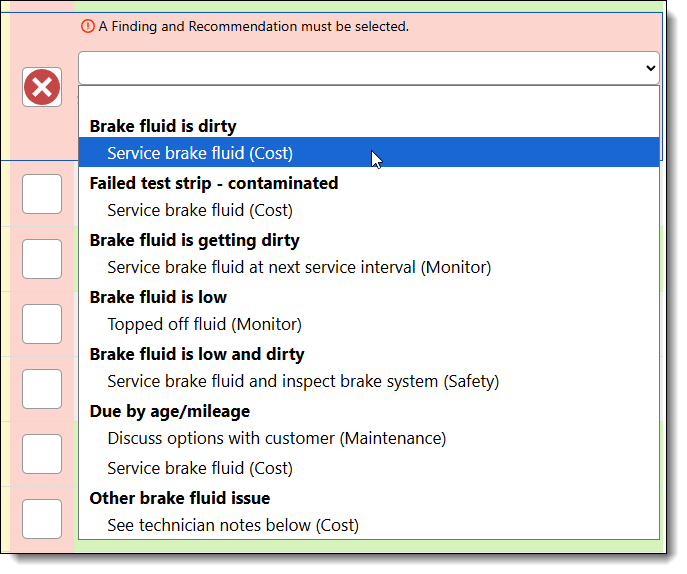
- “Findings” are what the Technician observes while looking at or performing a task. For instance, if a Tech is working in the “Underhood” category and performing the “Task” of checking the radiator, they may find that the radiator is cracked; thus, their “Finding” is “The radiator is cracked”.
- “Recommendations” are just that, the technician’s recommendation on how to deal with the abnormal finding. In the above case, the Technician could recommend either “Replace the radiator” or “Repair the radiator”. Consider using “Replace the radiator, hoses, and flush the coolant”.
- “Priority” is what is in parentheses after the recommendation. You can change this during the audit process, but we provide a default to get started.
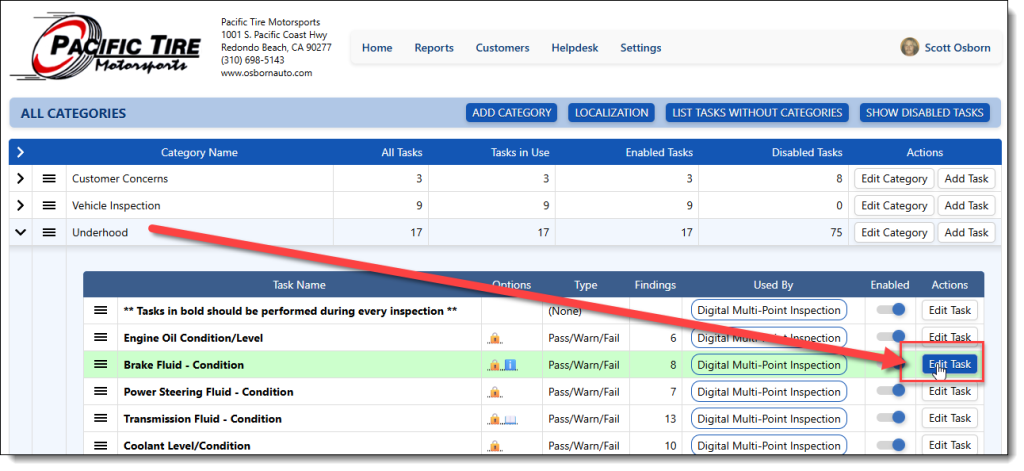
To edit the list of options, go to the task you want to work with and select the “Edit Task” button. That will open the task to the editing page

Select the “Findings and Recommendations tab
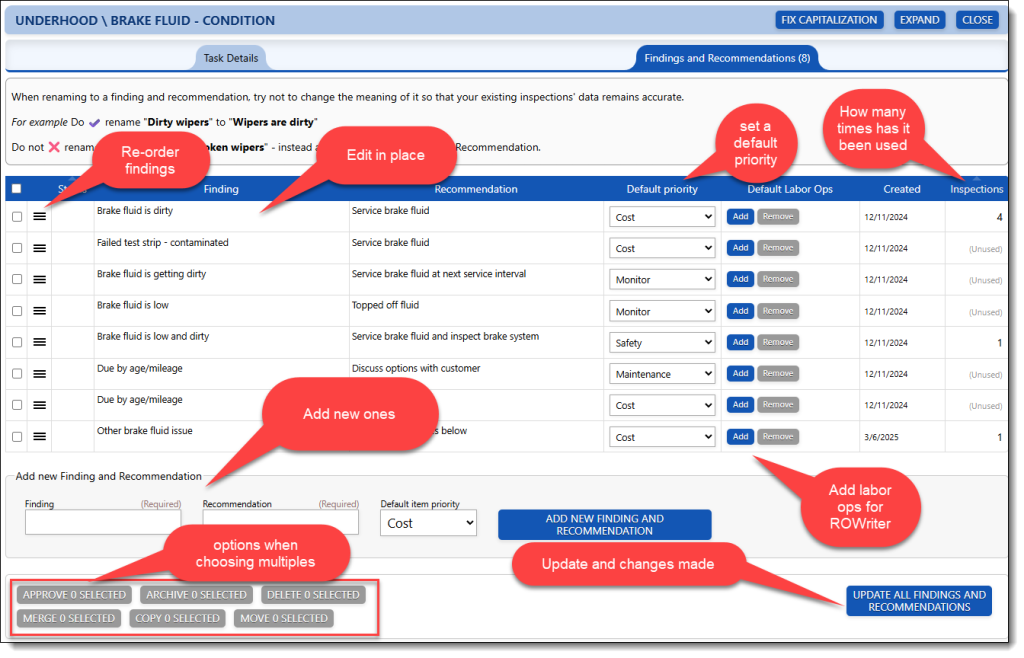
As you can see, there’s a lot going on here. Many options, including fixing the capitalization of all at once at the top. Here are a few things you can do, but the most important is to save your work often as you make changes using the update button in the lower right corner:
- You can reorder them to change how they appear in the dropdown list. Notice the one at the bottom that says “Other issue found”. That leaves it open for the mechanic to add his own notes in case none of the options fit well with his findings
- All of the existing findings and recommendations can be edited in place; make sure you save your work
- It’s always helpful if you add a default priority to help speed the process up, as a manager is auditing the inspection before sending it to a customer
- If you use ROWriter, you can assign a labor line to each recommendation to be pushed back into the estimate
- In the lower section, you can add new findings and recommendations
- You can have multiple recommendations for a finding. Just duplicate the finding on another line and add a different recommendation. We will group them together for you
- If you select multiple options, you have the ability to merge them into one to help simplify your lists
- You can select a row and archive it so it won’t show in the dropdown again
- Don’t forget to save your work!