


DVI – Auditing the inspection before you send it
Our Digital Vehicle Inspection Software has a unique feature we call “Auditing”. It’s the ability to review a simplified version of the checklist and make changes before showing it to the customer to get the sale.
This means you can correct misspellings, fix capitalization, revise a finding and recommendation, and set the priorities for each recommendation. But first, you are texting the inspection, right? Texting a well-laid-out inspection about 5 minutes BEFORE you call the customer will almost guarantee they’ll answer the phone. I know if I call my customer unannounced, they only answer about 40% of the time. If I call them within 5 minutes of texting the inspection, that jumps to around 80%.
Here’s an example of one we texted to a customer
When I say audit an inspection, I mean taking a few minutes to prepare it so the customer can read and understand it better. Think of the inspection as a presentation: let the customer know what is needed, show photos of each item you recommend, and make sure the photos tell a story. Just doing a digital inspection is not enough, you need to prepare it and use it as a tool to help your customer understand what is needed.
First, let’s understand the “Status” column on your screen:
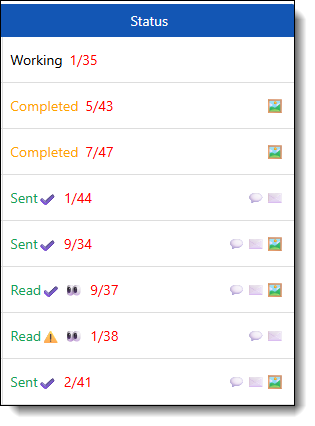
We use several statuses.
- New – This indicates an inspection in queue, waiting to be performed
- Working – This lets you know the technician is working on it (you can open the checklist and watch them check items off in real time)
- Completed – You get a popup message when the tech finishes the inspection, and it now shows as completed with indicator numbers
- Audited -The checkmark indicates that the Advisor has reviewed the inspection, set priorities, verified spelling and capitalization, and reviewed the images.
 The yellow caution sign indicates it was sent without being audited
 - Sent – The inspection has been sent either by
 text or
  email to the customer. The icons to the right indicate which, and you can mouse over the icon to see when it was sent
 - Read –
 The eyeballs indicate the inspection has been texted and viewed by your customer. You can mouse over the icon to see when it was read. You should also see a pop-up on your screen when the customer views it on their phone. This is controlled in your personal settings and browser settings
The indicator numbers indicate the vehicle’s health and the thoroughness of the inspection. So, 4/22 suggests 4 items recommended on a 22-point inspection.
Clicking the “Audit” button opens the “Recommendations and Notes” section of the inspection. Please think of this as the advisor’s shortcut that shows you only the items you need to see and lets you edit/fix/prioritize before sending it to your customer. The Recommendations & Notes look like this:

This now gives you quick access to only the items marked as bad during the inspection. It is listed in the order of the items checked. You can see whether they checked ‘yellow’ or ‘red’, edit any text boxes, select a different finding and recommendation as needed, and edit the existing finding and recommendation to correct spelling or wording. In the upper-right corner of your screen, there is also a “Fix Capitalization” button that will replace all text with proper sentence case. Misspelled words appear with a red line under them; right-click for the spell-check feature built into the browser.
Setting priorities is one of the biggest ways to help your customer understand what’s needed. You can see how they turn out in one of my texted inspections. Safety items that could cause breakdowns or poor driving conditions (such as belts, wipers, batteries, tires, and brakes) come to the top of your customer’s list, helping them understand what is imperative to do today. Next on my list is cost. Those are things that, if not addressed soon, could incur additional costs. This is followed by maintenance and the Monitor. Setting the priorities is quick and makes a huge difference. You can also mark items as “Sold,” which puts the word “Resolved” next to any items in the texted report.
Once you have audited the inspection, we recommend reviewing any images or videos that the Technician may have added and ensuring they tell a cohesive story. If the Tech is doing the inspection on a tablet and taking photos as they go, the images are already assigned to individual tasks. You can choose how the customer sees them.
As always, feel free to reach out with any questions!